
Capture what happened
Keep one current session’s details, intentions and typed notes. Put important historical developments into the timeline when you want to retain them there.
Keep the campaign ready for its next move.
Bring current-session notes, loose threads, people, clocks and next-game prep into one local workspace. Review what needs attention and prepare a report you choose to share.
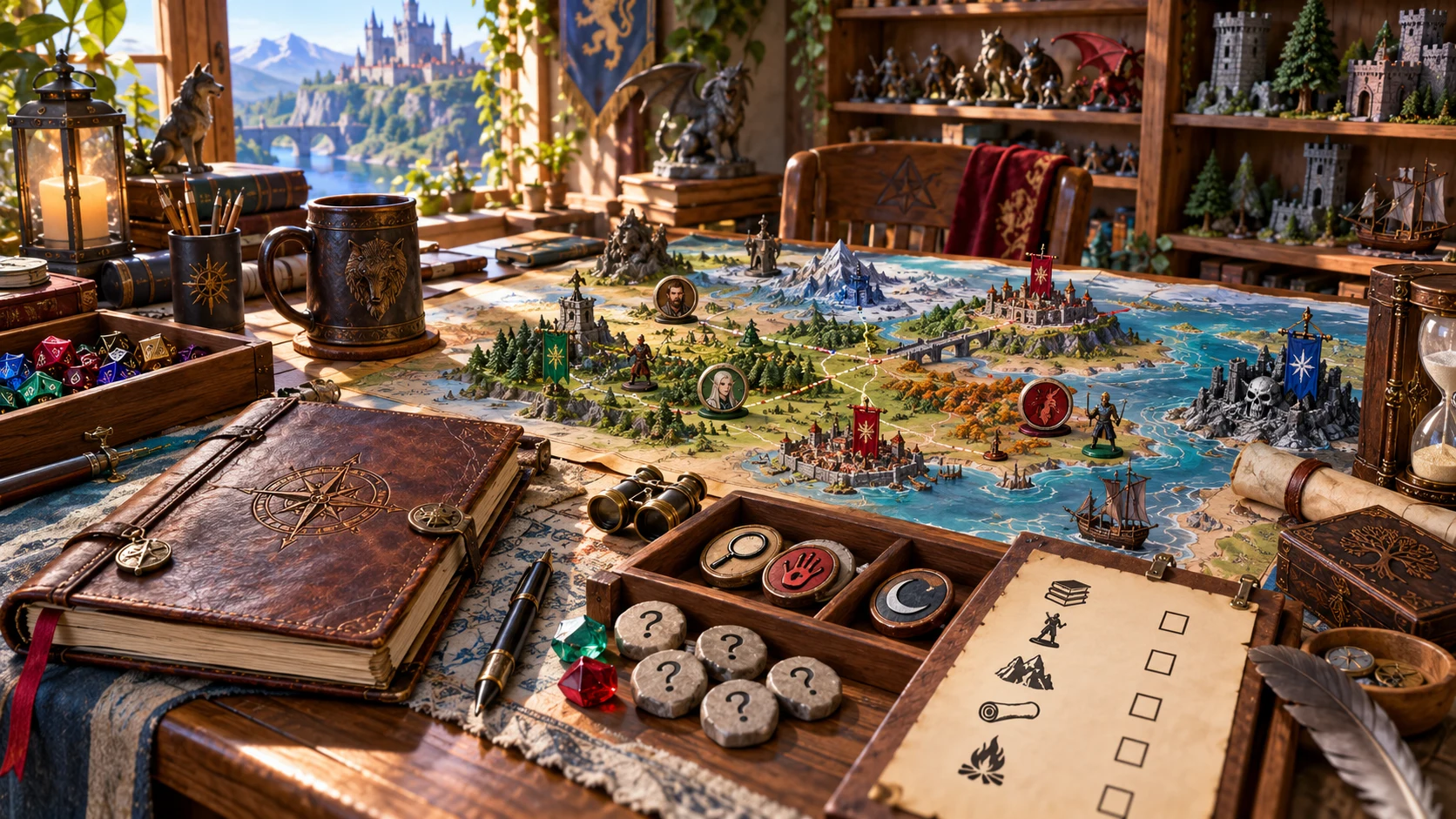
Campaign operations in one place
Record the campaign yourself, then use its open threads and clocks to guide the next session.
Keep one current session’s details, intentions and typed notes. Put important historical developments into the timeline when you want to retain them there.
Record thread priorities and next steps. Resolve what is settled and reopen what returns, with filters for open, resolved and urgent threads.
Keep people and places beside decisions, response notes and manually advanced clocks. These are your campaign records, not a simulation of the world.
Review attention items, request a prep suggestion and edit it for your table. Generate fresh report text before choosing what to copy or share.
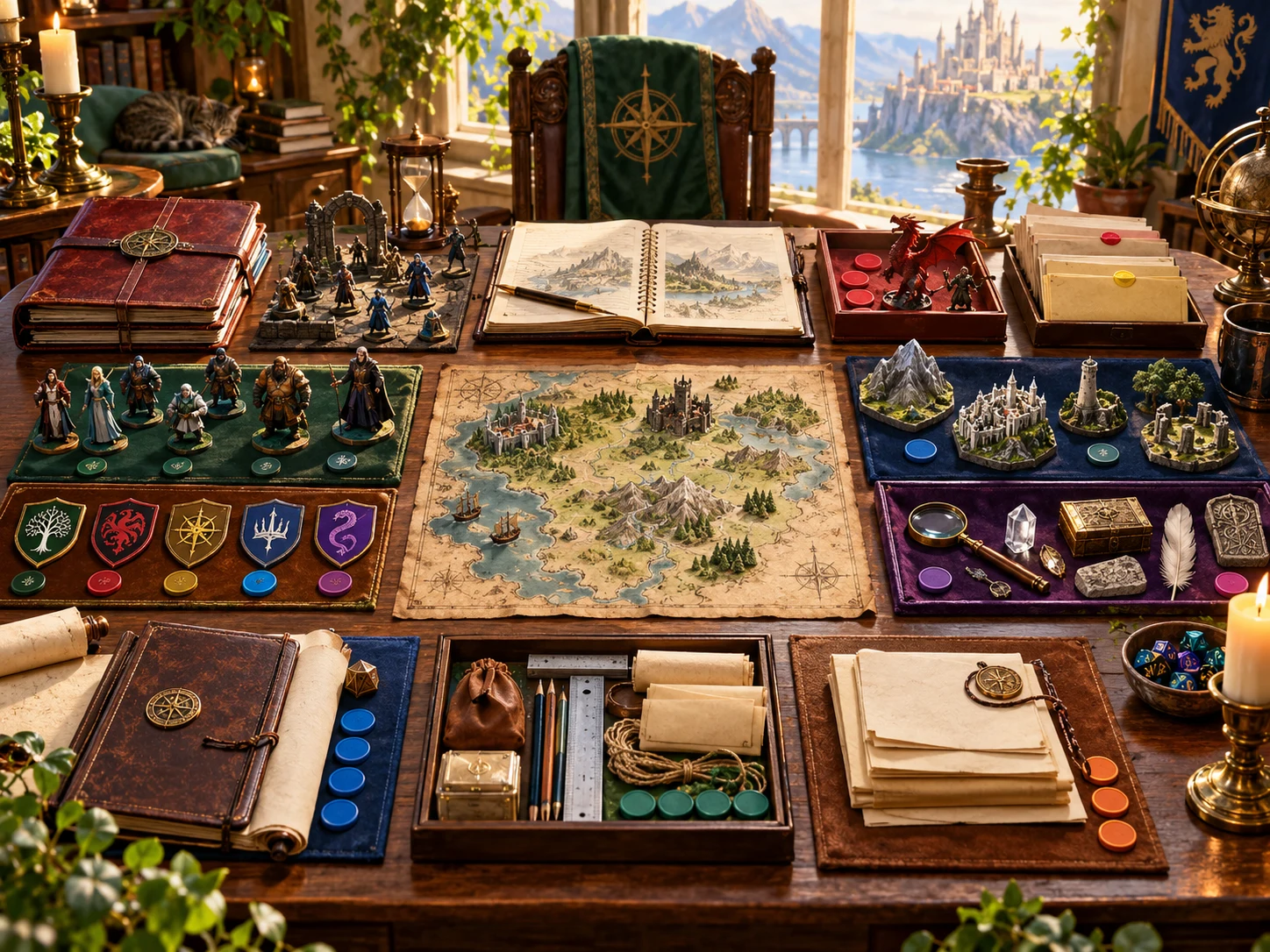
Organise the campaign state
Keep session captures, people, threads and clock notes together.
This artwork illustrates campaign organisation, not an application screen.
From table notes to next-session prep
Ten working areas cover the campaign’s reference records and immediate planning.
Start a separate local campaign or open one already saved here. Set its name, system and table principles in Campaigns.
Enter session details and intentions. Add typed captures, threads, people, clocks, decisions and timeline notes as you need them.
Check full or nearly full active clocks, Critical open threads and High or Critical open decisions. The console does not interpret free-form due dates.
Suggest prep, edit the opening and movement, and maintain a checklist. Generate new reports, review their text and copy the chosen audience version.
What the console provides
Eight capabilities bring reference notes, priorities, planning and portable snapshots together.
Move between Dashboard, Session, Threads, People, Clocks, Decisions, Timeline, Prep, Reports and Campaigns in one local console.
Record a session number, title, date, location and intentions. Add typed captures with optional tags, including events, discoveries and DM reminders.
Record a thread’s type, priority and next development. Filter open or resolved threads, then resolve, reopen or remove them as the campaign changes.
Keep NPCs, factions, locations, player characters and institutions with role, status and notes. Search names and notes or filter by kind.
Choose a clock type and segment size, record trigger and outcome notes, and advance or back up progress yourself. Close and reopen clocks deliberately.
Record decisions, responses and free-form due notes, plus timeline entries with category, session, date and audience metadata.
Suggest editable prep from open thread priorities, captured intentions and active clocks. See full or nearly full clocks and selected urgent records on the dashboard.
Generate and copy DM or filtered player text. Keep separate local campaigns and manually export or import a complete current-campaign JSON snapshot.
Different records for different needs
Choose the working area that fits the note you want to retain.
Capture events, discoveries, intentions or reminders, then record unresolved missions, debts and other threads with a priority and next development.
Record names, roles, statuses and notes for people and places. Track decisions, actors, responses, priorities and free-form due notes separately.
Track progress by segments you advance yourself. Add dated timeline notes with session, category and visibility metadata; entries display newest entered first.
Edit opening, intentions, movement and fallback, and add or remove checklist items. Generate DM and player report snapshots when you are ready to review them.
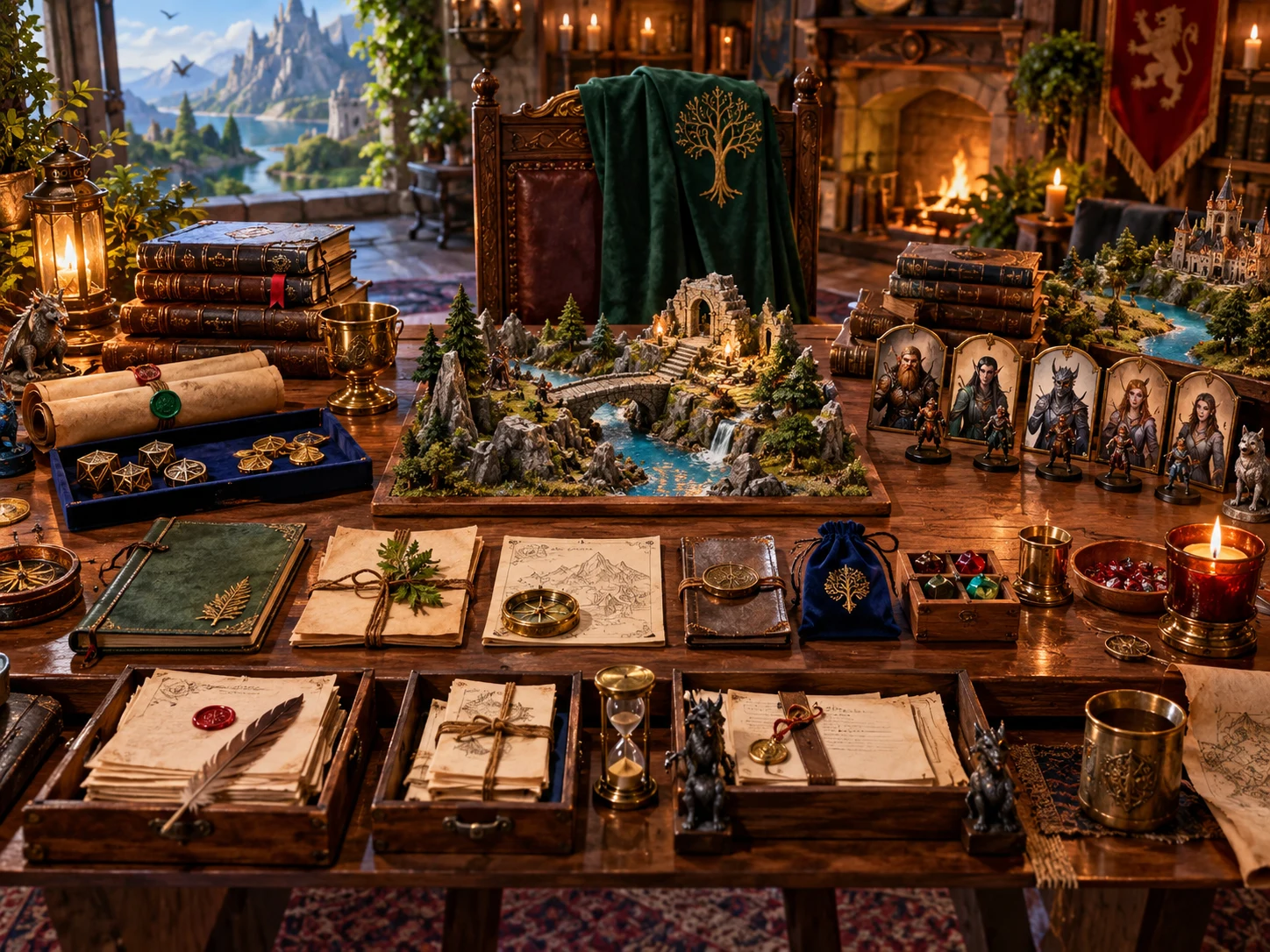
Get ready for the next table session
Use the suggested opening and clock summary as a starting point.
This illustration shows a prepared fantasy game table, not generated application output.
Keep campaign work current
Records remain under your control. Guidance uses explicit types, priorities and progress rather than interpreting the fiction.
Filter and prioritise what remains unresolved. Resolve or reopen existing threads; add a replacement if their recorded title, priority or next step needs changing.
Use progress controls and reference the trigger and final-outcome notes. A full clock remains active until you close it; it does not carry out the written outcome.
The highest-priority open thread supplies an opening; a second can supply a fallback. Written or captured player intentions and up to three active clocks provide context.
Suggest prep replaces four text fields and retains checklist items. Adjust the result yourself. The checklist supports adding and removing items, without completion checkboxes.
Local records and reviewed sharing
Paid access uses your VISINVOKE account. Campaign records stay on this Windows installation.
Edits trigger a local save attempt after a short delay. Failures are not shown and closing or switching can cancel pending changes. Keep exported copies and reopen important work to check it.
Open or delete local campaigns. Export workspace includes the full current campaign, with private notes. Import a compatible JSON snapshot as a new campaign; it does not replace an existing saved record.
It excludes DM reminder captures and Mystery or Consequence thread titles, with up to eight other open titles. It does not analyse text for secrets. Neither report includes timeline events. Review every sentence before sharing.
Reports remain snapshots after edits or switching campaigns. Generate again before copying. There is no account synchronisation, version history, direct Combat PRO handoff or automatic cross-product update.
Choose access for your toolkit
DM Ops Console is a paid standalone tool. Create a free account first, then review your selection and subscription.
Select DM Ops Console individually. Creating a free account does not by itself include paid generator access.
Choose a five-generator pack for other eligible standalone tools alongside this one. It provides selection capacity, not automatic access to every VISINVOKE product.
Review larger selected-generator packs in your account. Check the generators, subscription and reselection terms before choosing your toolkit.
Combat PRO, Battlemaps and image systems have their own access models. Standalone generator subscriptions do not include image or animation credits.
Give notes a clear type and keep the current session distinct from historical timeline entries.
Choose priorities and clock progress yourself, then adapt suggestions to your campaign.
Start Here and How Do I help cover the working areas, reports and local campaign handling.
Generate fresh text and review its categories and content before copying it for players.
Build your tabletop toolkit
Each card opens that product’s website. Review purpose and access separately; related products do not promise included access or automatic synchronisation.
Discover and open your supported Windows products through one connected VISINVOKE account.

Explore environment packs for tactical locations and the places your encounters unfold.
Review prepared opposition, tune creature statistics and run tabletop encounters with its own access.
Create focused character, monster, item and location images to complement your tabletop preparation.
Create guided commercial visuals for websites, brochures and wider creative projects.

Explore a separate futuristic RPG experience with its own world, characters and progression.
Product artwork illustrates campaign organisation and fantasy game preparation, not application screens or actual generated image output.
Quick answers
Understand the record structure, sharing filters and persistence before opening the console.
Each campaign has one editable current-session record with captures. Update its number, title, date, location and intentions as needed, and add important past events to Timeline yourself. The current interface does not create a separate session archive, close or roll over sessions automatically, or move old captures for you. Separate campaign files keep different campaigns apart.
Suggest prep opens on the highest-priority open thread and uses a second thread for a fallback when present. It uses written session intentions, or Player intention captures when those are empty, and summarises up to three active clocks. The suggestion replaces four prep text fields while retaining checklist items. Dashboard attention flags full or nearly full active clocks, Critical open threads, and High or Critical open decisions. It does not interpret due dates, generate bespoke narrative from your notes or run the campaign automatically.
No. You choose a segment size of 4, 6, 8, 10 or 12 and manually advance or reduce progress. Trigger and final-outcome text are reference notes. Filling a clock flags attention but does not execute the written outcome or close the clock. Close, reopen or remove it yourself. There is no real-time countdown or direct Combat PRO transfer.
The player report contains the current session heading and date, captures other than the exact DM reminder category, and up to eight open thread titles other than Mystery or Consequence. Those thread titles follow entry order. It does not analyse text for secrets, and neither report includes timeline entries. Review categories, titles and every visible sentence before sharing. Generate reports again after edits or switching campaigns: the displayed text is a snapshot and can otherwise remain from an earlier state.
Campaigns are kept on this Windows installation. Edits trigger a delayed local save attempt, but save failures are not shown and pending changes are not flushed on close or switching campaigns. There is no account synchronisation, version history or archive. Use Export workspace to keep deliberate copies of the current campaign, and reopen to check important changes. The saved-campaign list can show an older title until refreshed. Delete removes that campaign’s local file.
Export workspace downloads JSON for the current campaign, including its private notes and captures. It is not a player-safe export or a backup of every campaign. Import workspace gives an accepted JSON object a fresh campaign ID so an existing saved campaign is not replaced; use compatible snapshots because the importer does not fully validate nested data. Reports have separate Copy controls. There is no direct Combat PRO handoff, automatic cross-product synchronisation or report PDF or print control.
Continue in VISINVOKE
Create a free VISINVOKE account and choose the required generator access.
Get Desktop Command Centre from your account installer page. Sign in on Windows, then open DM Ops Console.